The Moral and Business Case for Accessibility
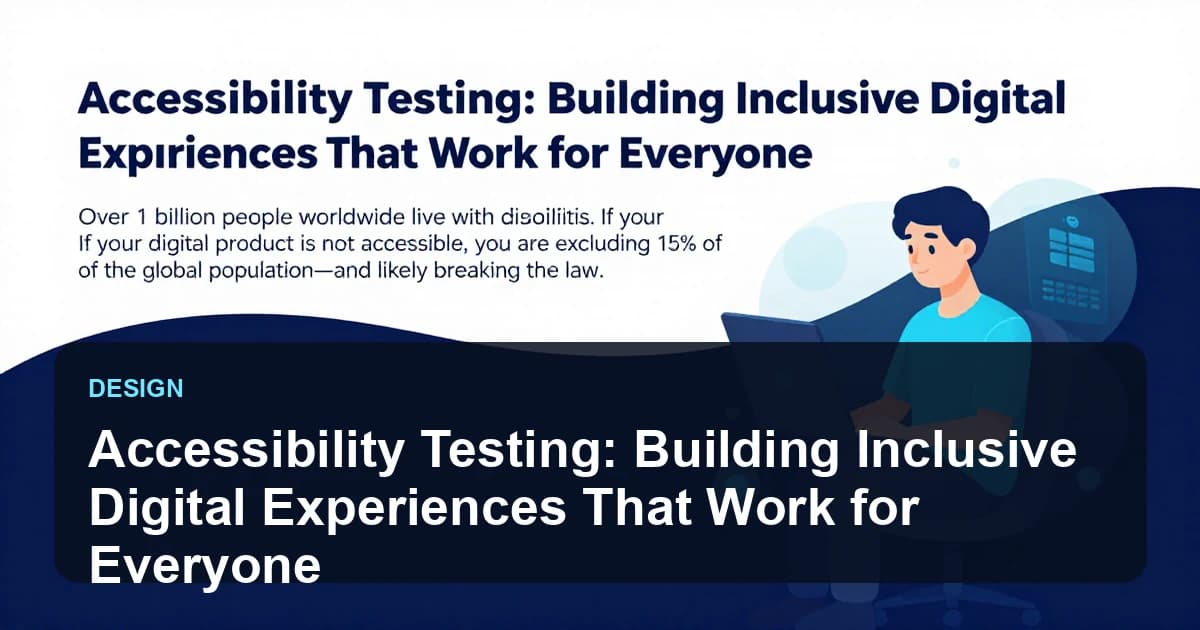
Accessibility is often treated as an afterthought—a compliance checkbox ticked at the end of a project. This mindset is not only ethically problematic but also financially shortsighted. According to the World Health Organization, over 1 billion people—15% of the global population—live with some form of disability. In the United States alone, people with disabilities control over $500 billion in disposable income annually. Excluding them from your digital products is not just unfair; it is leaving money on the table.
Furthermore, accessibility lawsuits are rising sharply. In 2025, there were over 4,000 web accessibility lawsuits filed in the US under the Americans with Disabilities Act (ADA). Companies like Dominos, Winn-Dixie, and Netflix have faced high-profile legal action. The European Accessibility Act (EAA), which takes full effect in 2025, mandates accessibility for a wide range of products and services across the EU.
But beyond compliance and profit, there is a simple truth: accessible design is just good design. The curb cuts that help wheelchair users also help parents with strollers, travelers with luggage, and delivery workers with carts. Digital accessibility—captions, keyboard navigation, high contrast modes—benefits everyone, including users in noisy environments, those with temporary injuries, or older adults with declining vision.
Understanding WCAG 2.2
The Web Content Accessibility Guidelines (WCAG) are the international standard for digital accessibility. The latest version, WCAG 2.2, builds on its predecessors with additional success criteria focused on cognitive accessibility and mobile touch interfaces.
The Four Principles: POUR
- Perceivable: Information must be presentable to users in ways they can perceive. This includes providing text alternatives for images, captions for videos, and ensuring sufficient color contrast.
- Operable: Users must be able to operate the interface. This requires keyboard accessibility, adequate time to interact with content, and avoiding content that could cause seizures.
- Understandable: Information and operation of the UI must be understandable. This means readable text, predictable navigation, and input assistance for forms.
- Robust: Content must be robust enough to be interpreted reliably by a wide variety of user agents, including assistive technologies like screen readers.
Conformance Levels: A, AA, AAA
WCAG defines three conformance levels. Level A is the minimum, Level AA is the standard most organizations target (and what most laws require), and Level AAA is the gold standard but often impractical for all content. Aim for AA as the baseline.
Common Accessibility Barriers and How to Test for Them
Understanding the most common barriers is the first step to testing effectively.
1. Missing or Poor Alternative Text
Screen reader users rely on alt text to understand images. Missing alt text leaves them guessing. Poor alt text (like alt of image) is equally useless.
Testing Approach: Audit all images using automated tools like axe or WAVE. Then manually review that alt text is descriptive and contextually appropriate. Decorative images should have empty alt attributes (alt equals empty string) to be skipped by screen readers.
2. Insufficient Color Contrast
Low contrast between text and background makes content unreadable for users with low vision or color blindness.
Testing Approach: Use contrast checking tools (like the WebAIM Contrast Checker or browser DevTools) to verify that text meets the minimum contrast ratio of 4.5:1 for normal text and 3:1 for large text (14pt bold or 18pt regular).
3. Keyboard Inaccessibility
Users who cannot use a mouse—due to motor impairments, blindness, or simply preference—rely entirely on keyboard navigation. If interactive elements are not keyboard accessible, these users are locked out.
Testing Approach: Put your mouse aside and navigate your entire application using only the keyboard (Tab, Shift+Tab, Enter, Space, Arrow keys). Verify that every interactive element is reachable, that focus order is logical, and that focus indicators are visible.
4. Missing Form Labels
Screen readers announce form inputs by reading their associated labels. An input without a programmatically associated label (using the label element and for attribute, or aria-label) is announced as just edit or text.
Testing Approach: Use a screen reader (VoiceOver on Mac, NVDA on Windows) to navigate through forms. Every input should be announced with a descriptive label.
5. Inaccessible Dynamic Content
Modern web applications are full of dynamic content—modals, dropdowns, toast notifications. If these changes are not announced to assistive technologies using ARIA live regions, screen reader users will not be aware of them.
Testing Approach: Trigger dynamic content updates and verify that screen readers announce them appropriately. Use aria-live, role of alert, or role of status where appropriate.
Accessibility Testing Tools
A combination of automated and manual testing is essential.
Automated Tools
- axe DevTools: A browser extension and CI integrable library that catches a wide range of accessibility issues. It is the industry standard.
- WAVE: A visual browser extension that overlays accessibility errors directly on the page.
- Lighthouse: Built into Chrome DevTools, it provides an accessibility score and recommendations.
- Pa11y: A command-line tool for running accessibility tests in CI pipelines.
Important Caveat: Automated tools catch only about 30-40% of accessibility issues. They can detect missing alt text but cannot judge if the alt text is meaningful. Manual testing is non-negotiable.
Manual Testing Essentials
- Screen Reader Testing: Use VoiceOver (Mac/iOS), NVDA (Windows, free), or JAWS (Windows, commercial) to experience your application as a blind user would.
- Keyboard-Only Navigation: Unplug your mouse and navigate the entire user journey.
- Zoom Testing: Zoom the browser to 200% and verify that content reflows without horizontal scrolling and remains usable.
- Color Blindness Simulation: Use tools like Chrome DevTools rendering emulation to simulate various types of color blindness.
Integrating Accessibility into the Development Lifecycle
The most cost-effective approach to accessibility is to build it in from the start, not bolt it on at the end.
Design Phase
Designers should annotate mockups with accessibility information: focus order, heading hierarchy, aria roles for custom components. Use plugins like Stark in Figma to check color contrast during design.
Development Phase
Developers should use semantic HTML as the foundation. HTML elements like button, a, nav, and main have built-in accessibility behaviors. Avoid div and span soup with custom click handlers—it is an accessibility nightmare.
Testing Phase
Integrate axe into your CI pipeline to catch regressions automatically. Include accessibility acceptance criteria in user stories (As a keyboard user, I can navigate the checkout form).
User Testing
Nothing replaces testing with real users with disabilities. Partner with disability advocacy groups or hire consultants who are screen reader users or have mobility impairments. Their feedback is invaluable.
Conclusion: Accessibility is Quality
Accessibility is not a niche concern or a legal burden. It is a fundamental dimension of software quality. A product that excludes 15% of the population is a product with a critical defect. For QA professionals, accessibility testing should be as routine as functional testing or performance testing.
The tools exist. The guidelines are clear. The moral and business cases are compelling. The only barrier is prioritization. Let 2026 be the year your team makes accessibility non-negotiable.
Written by XQA Team
Our team of experts delivers insights on technology, business, and design. We are dedicated to helping you build better products and scale your business.